
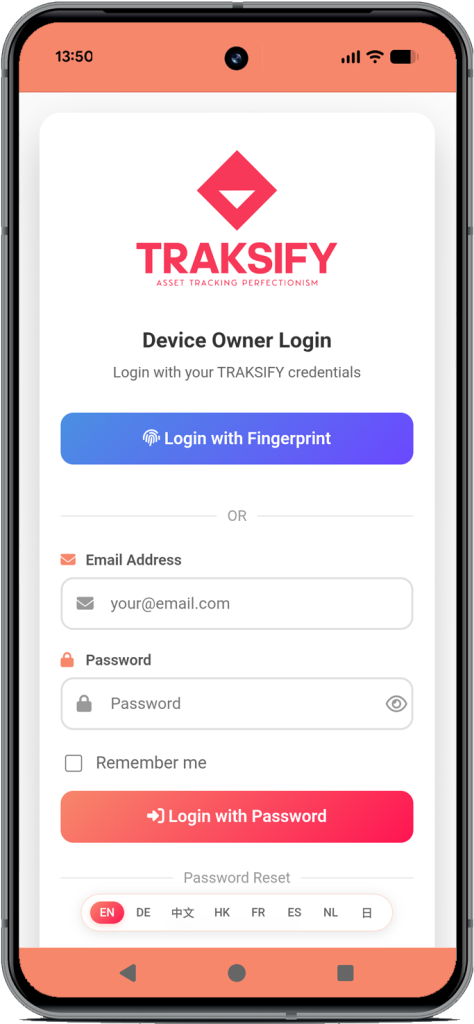
mytraksify.com – Your Complete Mobile Tracking Command Center
mytraksify.com represents the culmination of our development work — a feature-rich progressive web app that transforms your mobile browser into a sophisticated tracking platform. Built as a suite of applications, this interface puts enterprise-grade asset protection, advanced timeline analysis, and comprehensive geofence management directly in your pocket, with the added convenience of installing it as a native-like app on your device.
Latest Release Version
4.5.0 (Released 6th May’26)
New Features Added
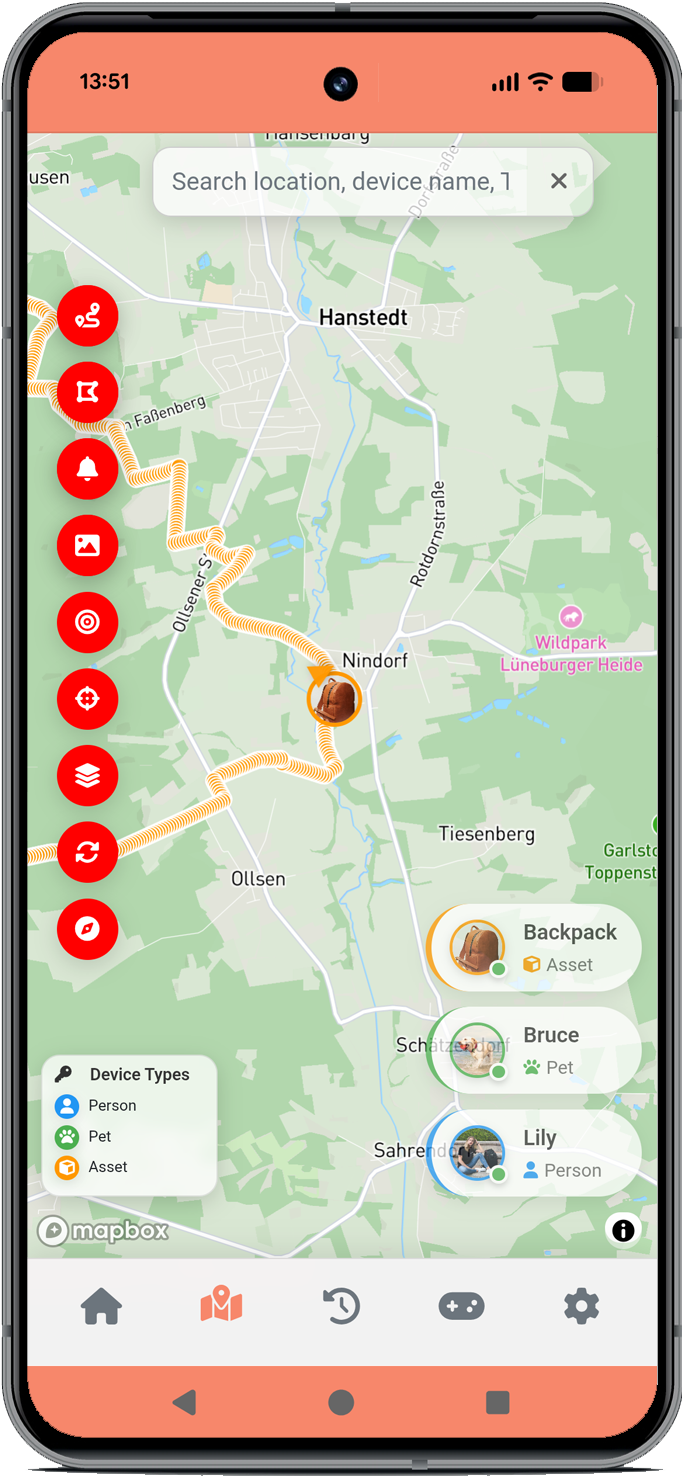
Map Follow Mode
Keep your device centered on the map during live tracking. The map automatically follows your device’s movement, ensuring you never lose sight of its current position. Toggle on/off as needed.
GPX Timeline Export
Export any recorded route as a standard GPX file. Perfect for importing into third-party applications like plotaroute.com, Strava, Garmin BaseCamp, Google Earth, and other GPS software. All track points, timestamps, speed data, and user markers are included.
Live Trail Activation (Single Device View)
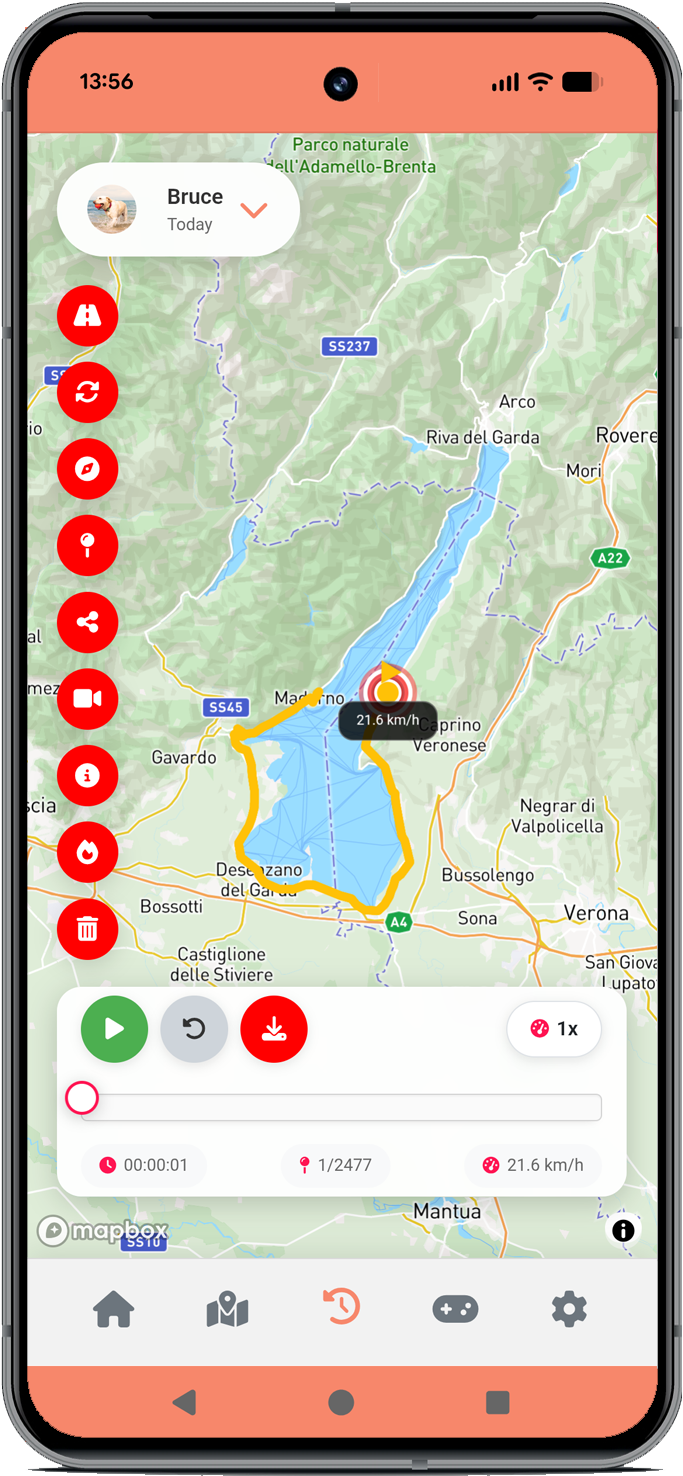
Activate the live trail overlay in the single device view to see the complete path your device has taken during the current session. Visualize movement patterns and track history directly on the map.
Try the new PWA App in 3 simple steps
Step 1: Install the App into your iOS or Android device.
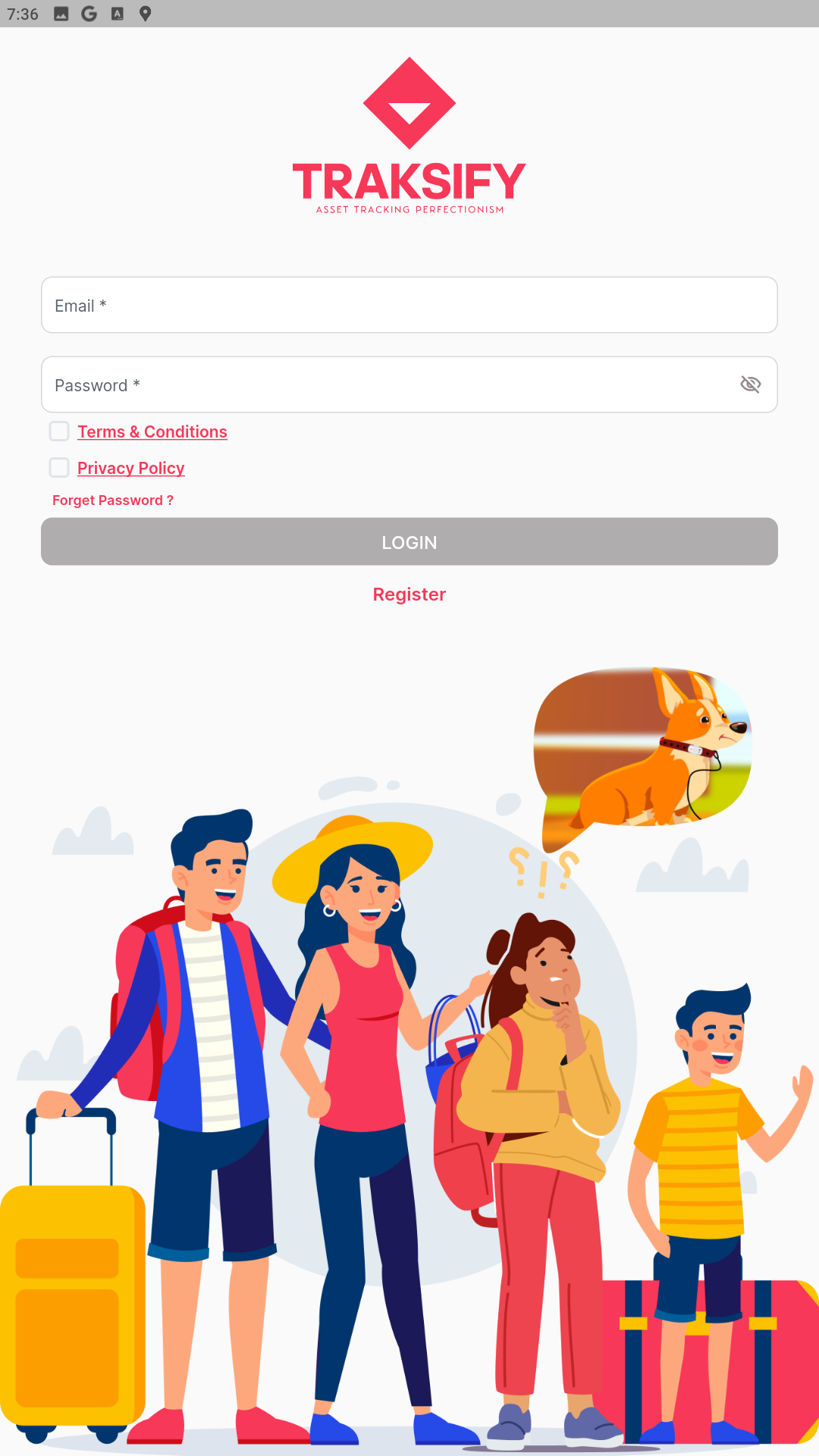
Step 2: Open the installed PWA App and login with:
demo@mytraksify.com
Demo@123
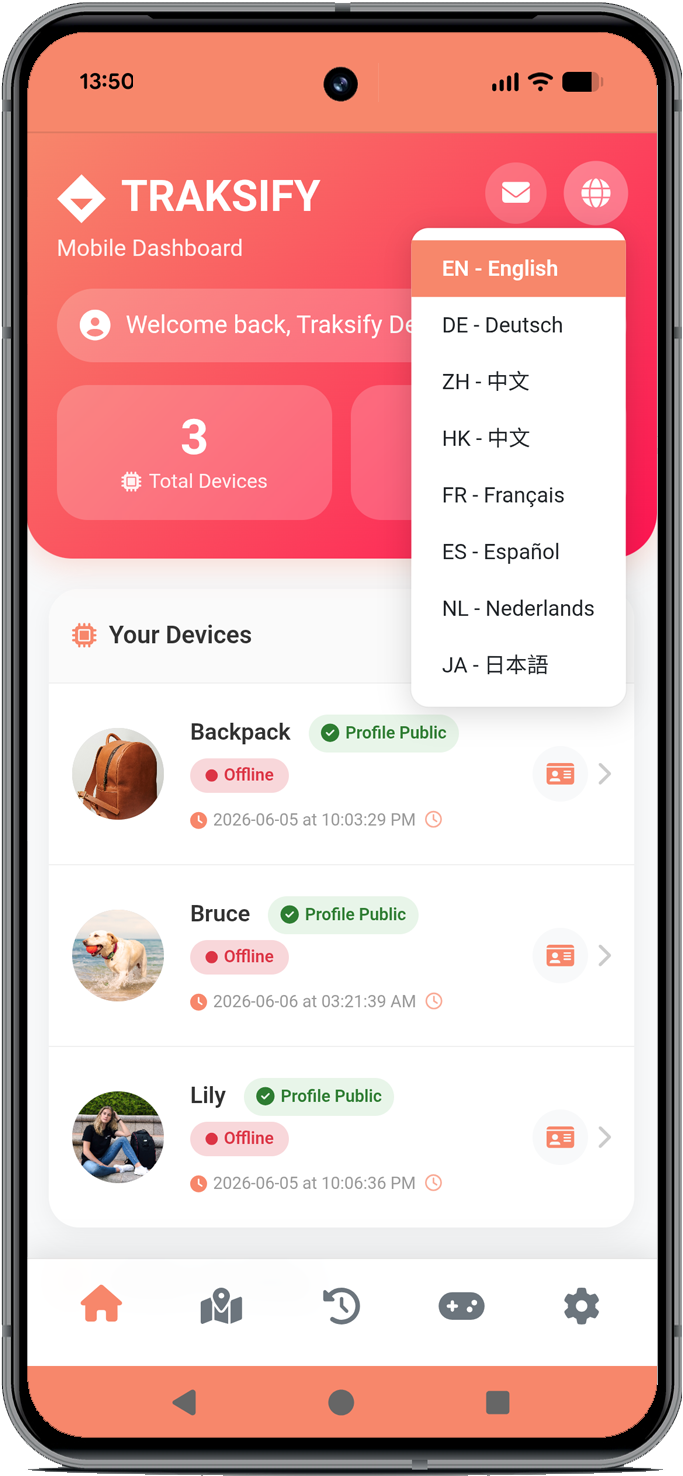
Step 3: Experience three device simulations.
Unlock Faster Security with Biometrics
Want to log in to TRAKSIFY Live in just a second—without typing your password every time? Enabling biometric authentication (Face ID, Fingerprint, or Passkey) gives you the perfect combination of ironclad security and instant access.
Because your biometric data never leaves your device, it’s one of the safest ways to protect your account while saving you time. Follow these simple steps to set it up:
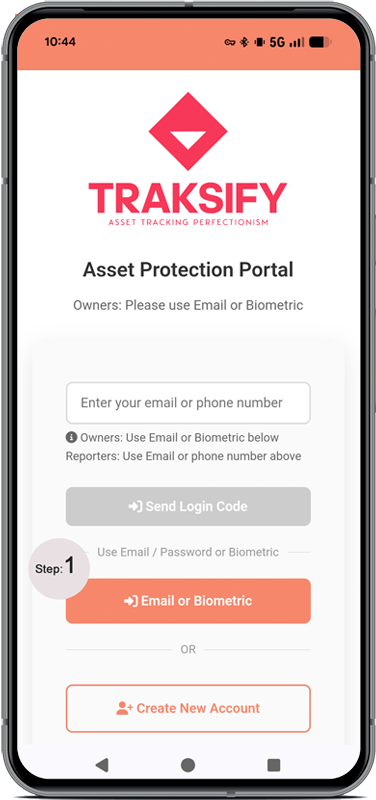
Step 1: Go to mytraksify.com (install the mobile app if you haven’t already).
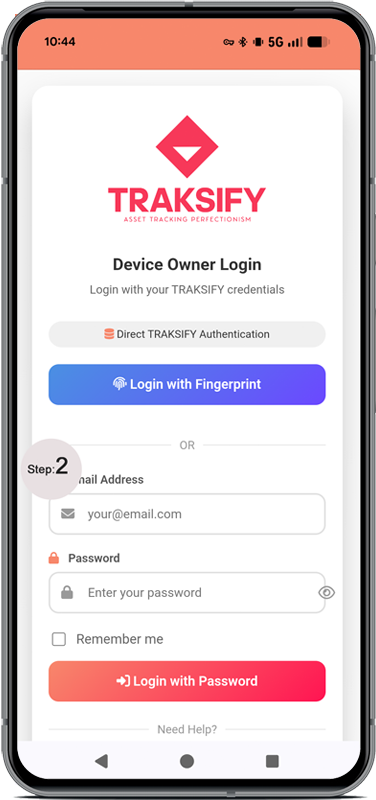
Step 2: Log in with your email and password.
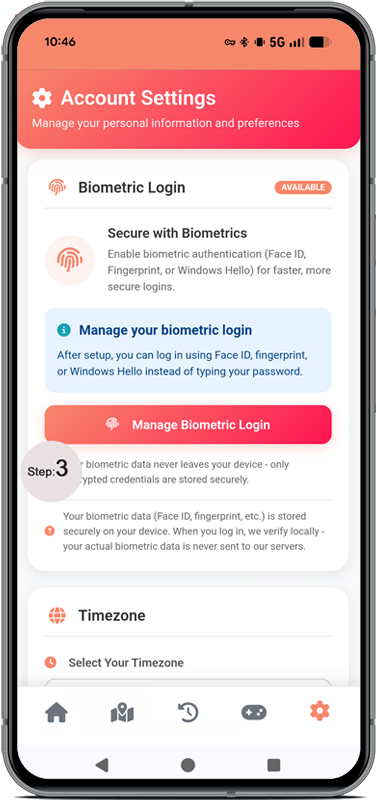
Step 3: Tap the Settings icon (the far-right menu icon) → Select Manage Biometric.
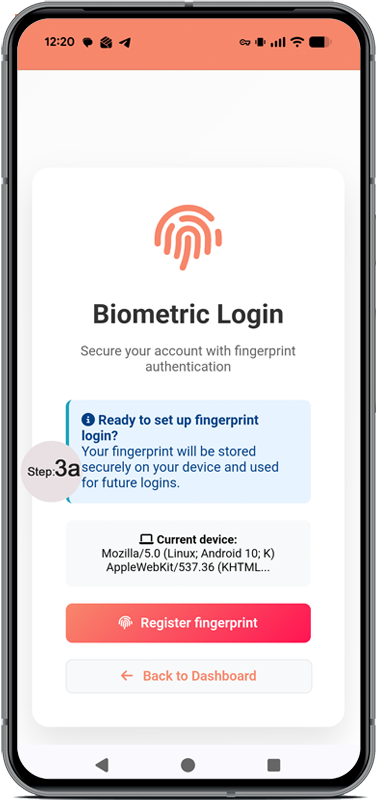
Step 3a: Register your Face ID, Fingerprint, or Passkey.
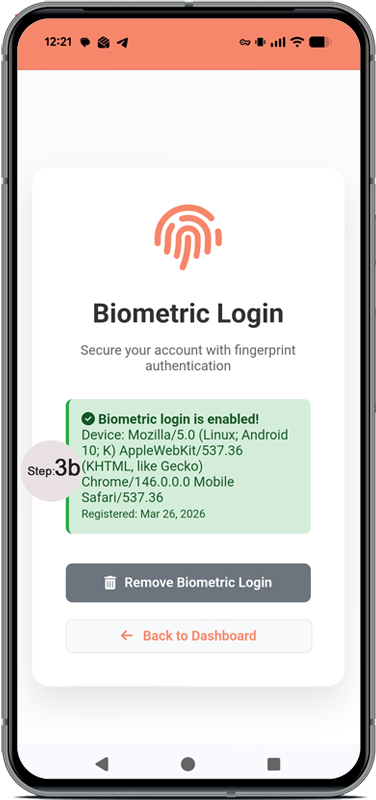
Step 3b: Wait for the confirmation that your biometric method has been successfully registered.
Step 3c: Log out to test it: Go to Settings Menu → Tap Logout.
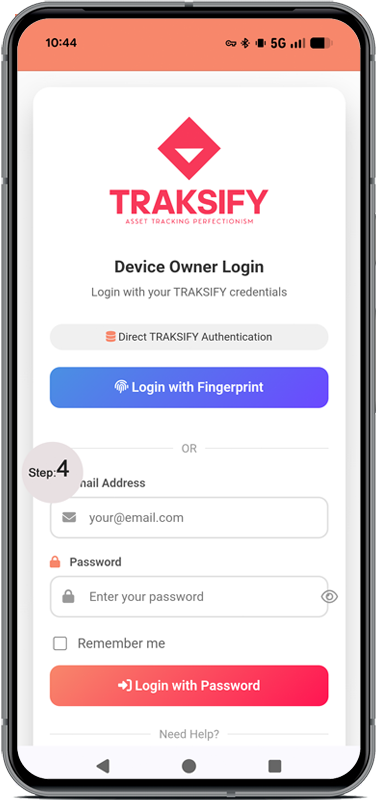
Step 4: Log in again—this time, simply use your biometric to access your account instantly.
Once enabled, you’ll never have to remember your password for everyday logins again.
Core Mobile Features
Advanced Timeline & Replay Functions
- Timeline Replay: Step through historical movement data with our interactive timeline player. Watch asset journeys unfold in accelerated time, helping you visualize routes, stops, and significant events with precision.
- User Markers with Images: Drop custom markers at any point on the timeline and attach images directly from your device. Perfect for documenting important locations, incidents, or points of interest during journey analysis.
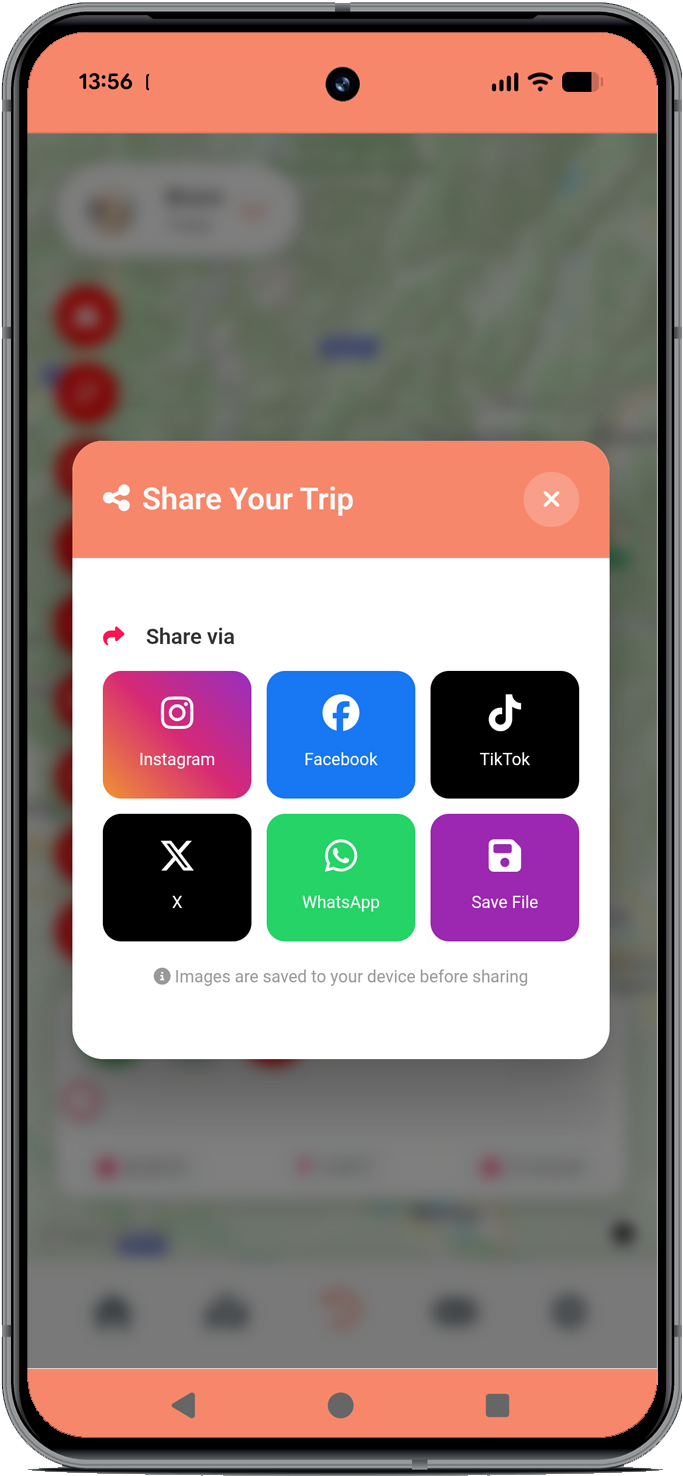
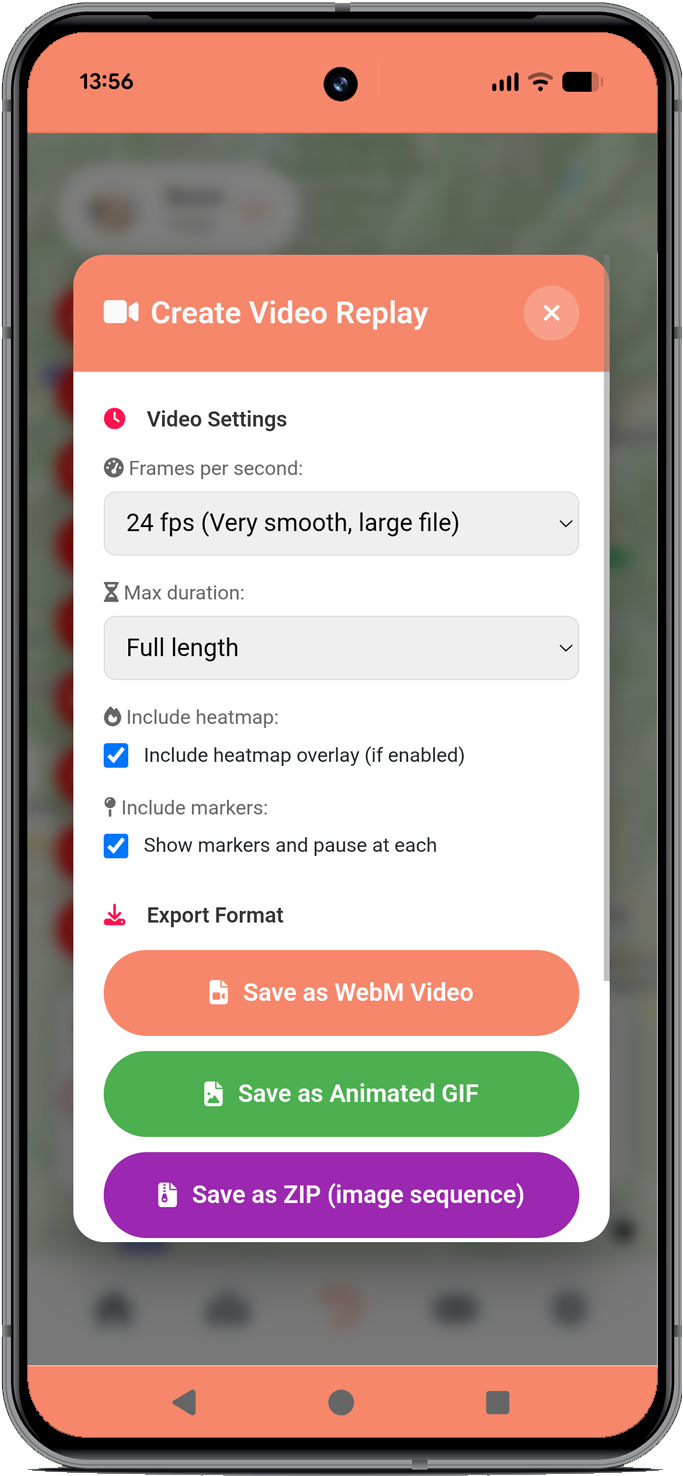
- Social Media Exports: Generate and download shareable timeline images and video clips directly from the replay function. Share recovery successes, journey highlights, or important events with your community or on social platforms.
Comprehensive Geofence Management
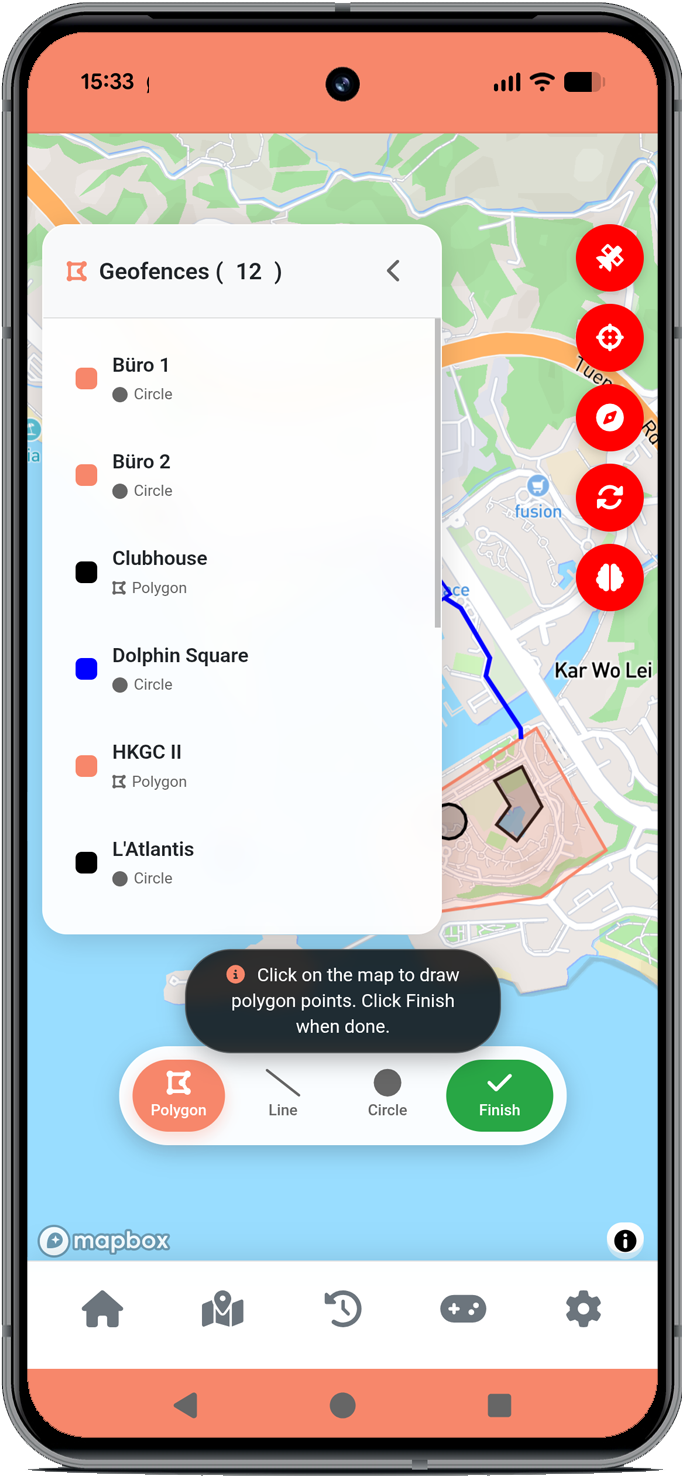
- Color-Coded Geofences: Create and manage unlimited geofence zones with our new visual organization system. Assign distinct colors to different fence types — red for restricted areas, green for safe zones, yellow for alert boundaries — for instant visual recognition on your map.
- Precision Zone Control: Draw custom shapes and set entry/exit parameters for each geofence with granular control over alert triggers and schedule-based activation (coming soon).
Smart Notification & Calendar Management
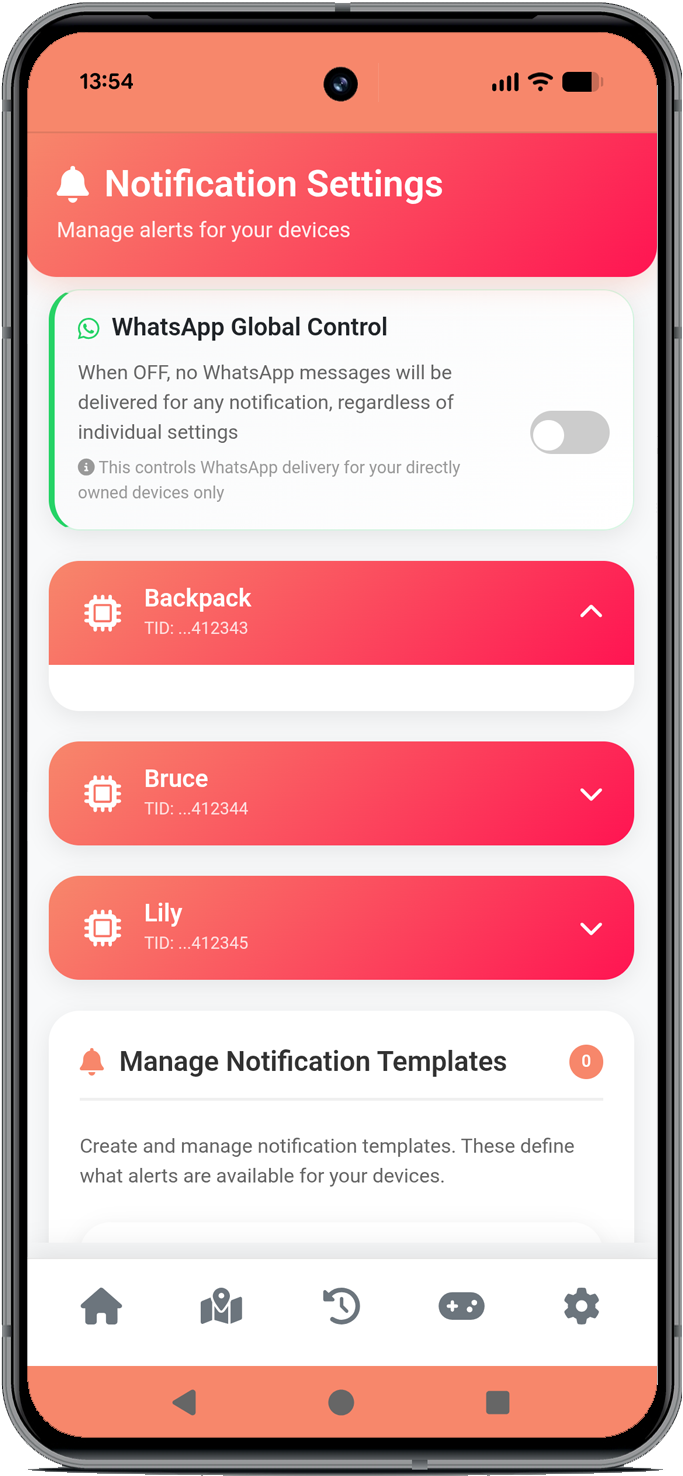
- Device-Level Assignment: Assign notification preferences at the individual device level. Configure which alerts go to which contacts — for example, direct pet escape alerts to family members, while asset movement notifications route to security personnel.
- Multi-Channel Delivery: Receive notifications via WhatsApp, email, or app push alerts based on device-specific rules and priority levels you define.
- Custom Calendars: Create and assign custom calendars to all your devices individually. Decide when you would like to get notified for various event types or pause them all.
Device Profile Management
- Rich Device Profiles: Create detailed profiles for each tracker with custom names, photos, and tracking parameters and privacy control. Perfect for managing multiple pets, family members, or valuable assets from a single dashboard.
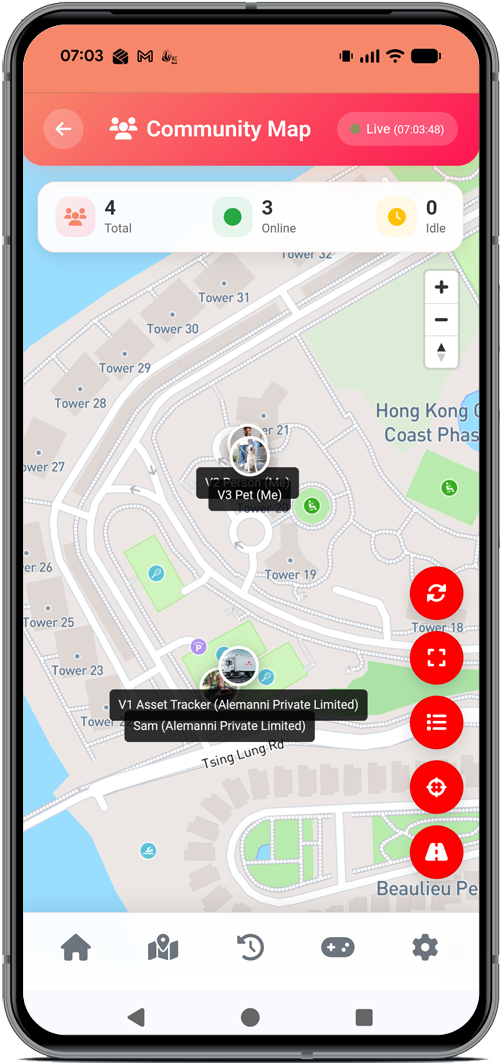
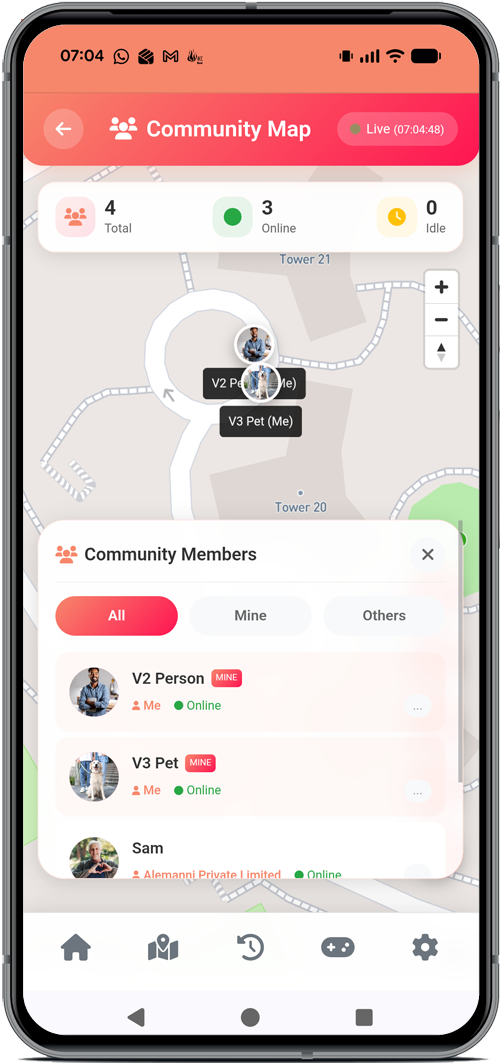
- Image Map User Icons: Personalize your tracking experience by assigning custom images as map icons. Use actual photos of pets, family members, or assets as their on-map representation for instant visual identification.
Tracking & Analytics
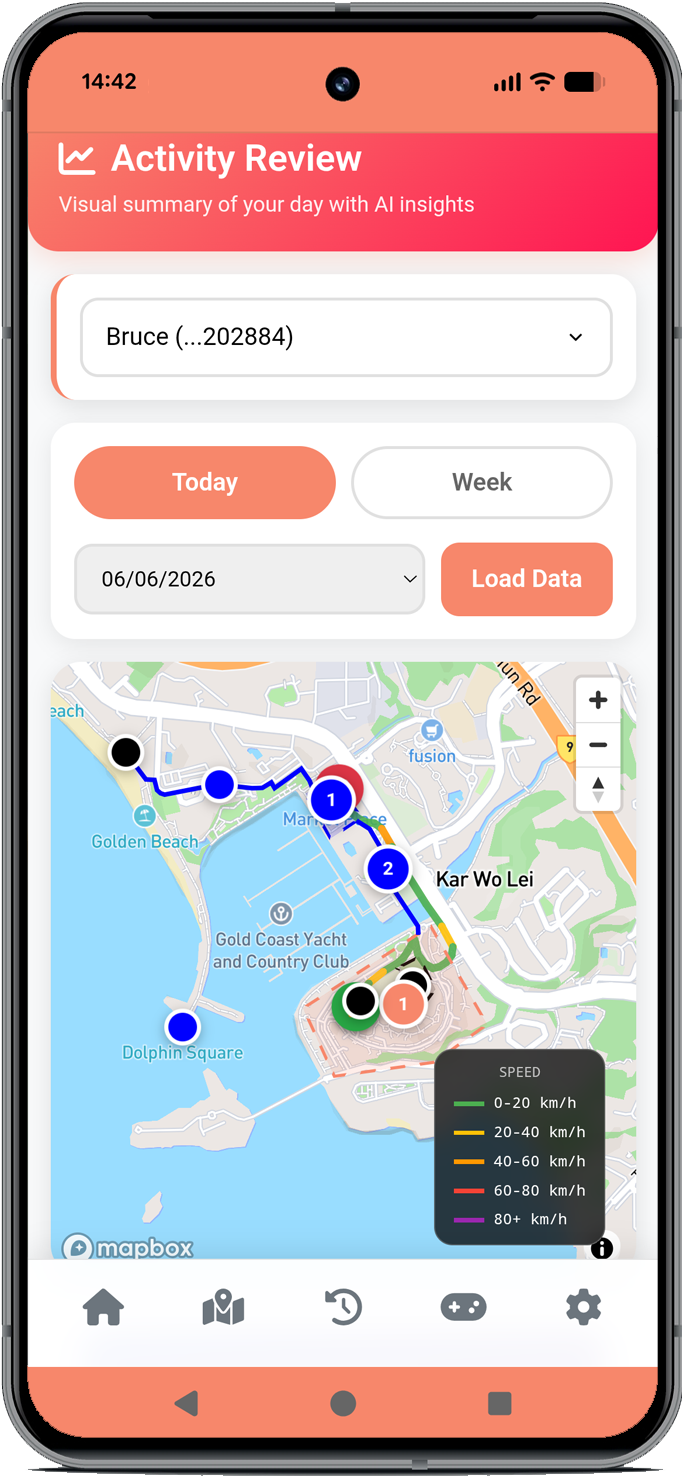
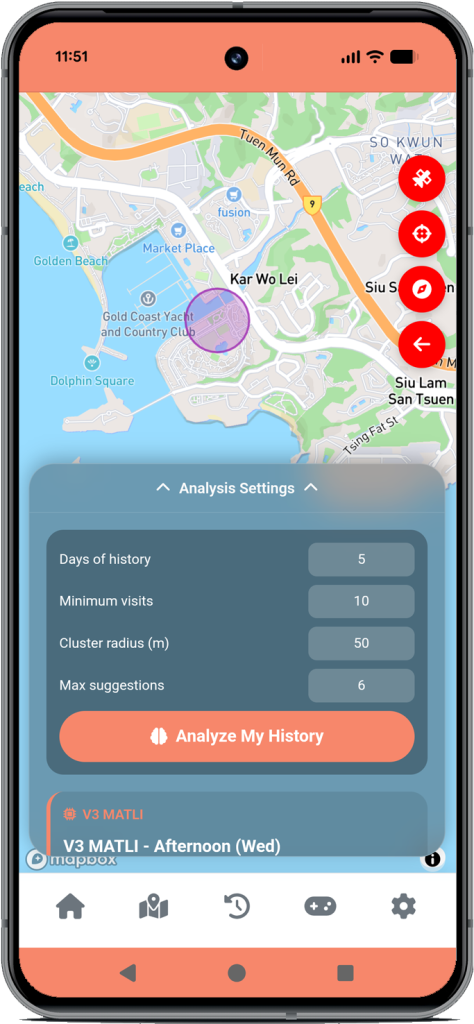
- Comprehensive Heatmap View: Visualize movement patterns and location density with advanced heatmap technology, perfect for understanding frequently visited areas and identifying behavioral patterns.
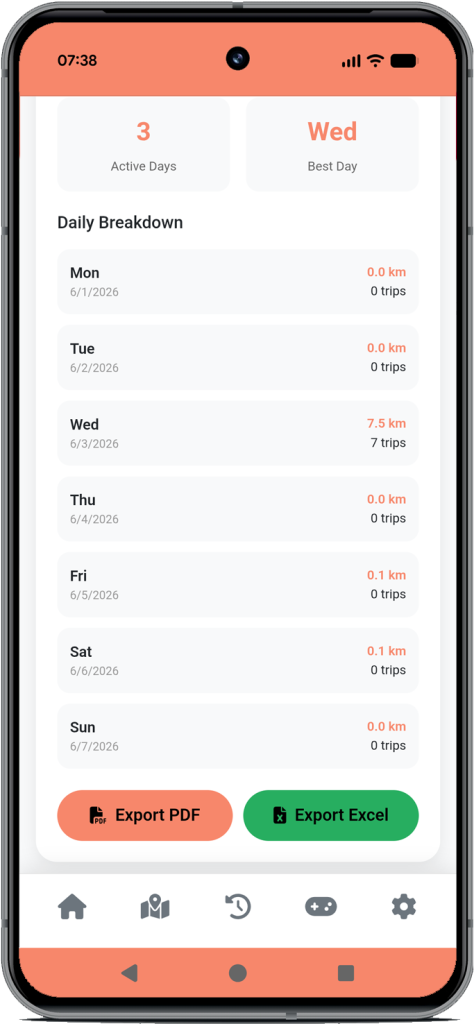
- Event & Position History: Access complete historical data with powerful filtering by date, location, or event type. Every alert, movement, and status change is logged for detailed analysis.
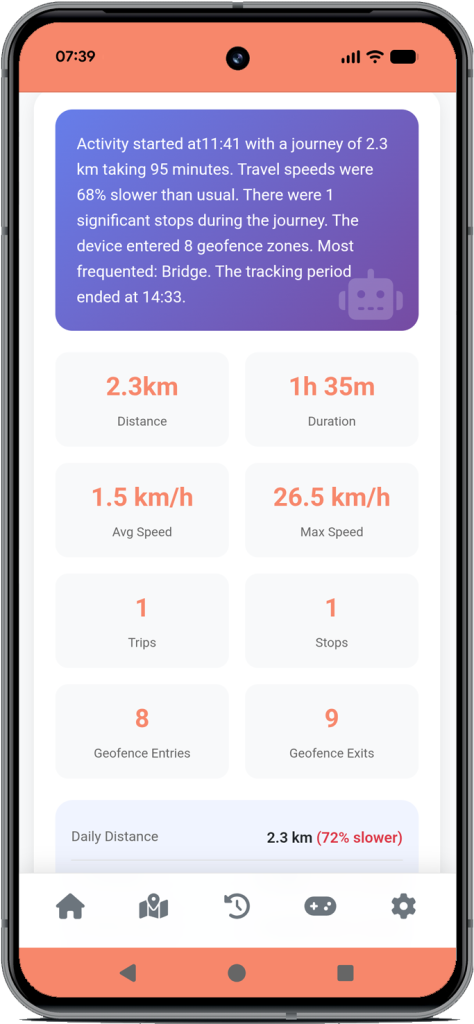
- Device Performance Analytics: Monitor battery life, signal strength, connectivity status, and usage patterns to ensure optimal device performance.
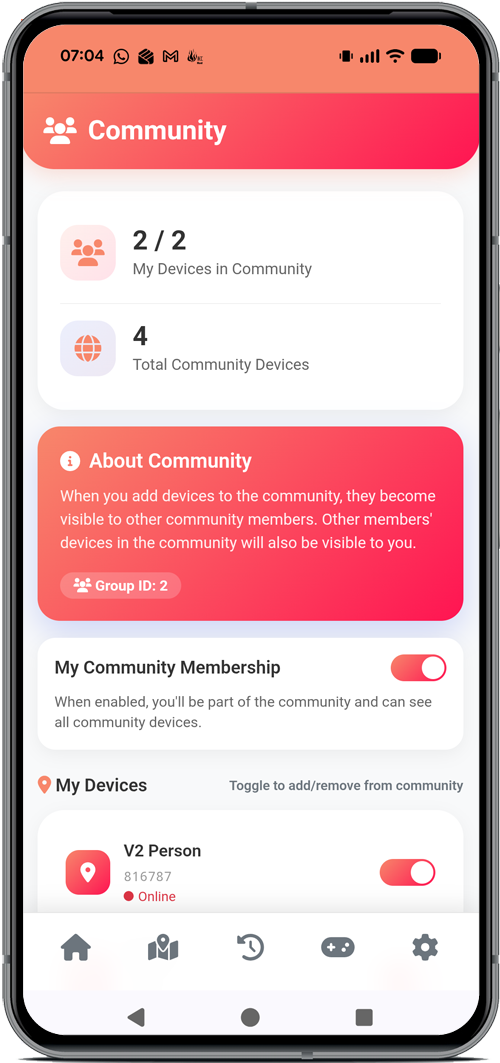
Community-Powered Recovery
- Report Lost Devices: Instantly launch the recovery process with interactive map pinning, image uploads, and detailed incident descriptions.
- View & Recover Lost Devices: Participate in our community recovery network with public commenting, verified reporter registration, and social media sharing capabilities.
Install mytraksify.com as a Mobile App
Get the full app experience with one-tap access from your home screen:
On Safari (iPhone / iPad)
- Open Safari and navigate to my.traksify.com
- Tap the Share button (square with arrow icon) at the bottom of the screen
- Scroll down and tap Add to Home Screen
- Edit the name if desired, then tap Add in the top-right corner
- The Traksify icon will appear on your home screen — tap it to launch as a full-screen app
On Chrome (Android)
- Open Chrome and navigate to my.traksify.com
- Tap the three-dot menu (vertical) in the top-right corner
- Tap Add to Home screen (you may see “Install app” or “Add to Home screen”)
- Confirm by tapping Add on the pop-up dialog
- Tap Add again to place the icon on your home screen
- Launch Traksify from your home screen for an app-like experience with faster loading and full-screen display
Copyright Disclaimer
“Google Play and the Google Play logo are trademarks of Google LLC. Android is a trademark of Google LLC. Apple, the Apple logo, App Store, and iOS are trademarks of Apple Inc., registered in the U.S. and other countries. The use of these trademarks and logos does not imply endorsement or affiliation with Google LLC or Apple Inc. This content is not officially associated with or endorsed by Google or Apple.”